Android Lodge Translator

Showing posts with label How to format your Android phone. Show all posts

Thursday, 6 October 2016

Glo Ogbonge latest Data: Get 3.2GB For 1K, 7.5GB For 2k, 10GB For 2.5K and Many More

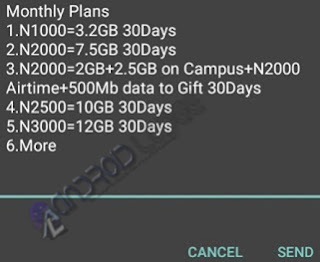
Globacom still maintaining their status quo in-term of Offering Cheap and Affordable Data Bundles. Glo has once again boosted up the data volume of their various data plans, but still on the same affordable prize. Check out the new Glo data offer in the screenshot below;
image

Initially, we used to subscribe to 2GB data for 1k...


image

 
Glo has added 1.5GB extra data to the N2000 plan and 1.2GB to the N1,000 plan, another intro to 2GB+2.5GB on campus + N2000 airtime+500MB data to gift going for just N2,000. See the full list of the new data plans below:
1. 1.6GB for N500 valid for 10days
2. 3.2GB for N1,000 valid for 30days
3. 7.5GB for N2,000 valid for 30days
4. 10GB for N2,500 valid for 30days
5. 12GB for N3,000 valid for 30days
6. 18GB for N4,000 valid for 30days
7. 24GB for N5,000 valid for 30days
8. 48GB for N8,000 valid for 30days
9. 2GB + 2.5GB on Campus + N2,000 airtime + 500Mb data to gift for N2,000 valid for 30days
10. 5GB + 6.25GB on Campus + N5000 airtime + 1.25GB for N5,000 valid for 30days


To Subscribe
If the Glo network is good in your area, then the plan is for you

  • Load the required amount of money on your Glo Sim. Dial *777#, then choose Data Services » Buy Data » Monthly Plans. 
  • Follow the on-screen instructions as it is very simple.

I think this should be the best offer to enjoy, but we understand that Glo GPRS network is very poor in many parts of this country, but I just want to you to be happy with this news, because this is how Globacom normally take the lead while others we surely follow, just have a strong believe that your favorite network are coming very soon with this new favorable data plan. Competition always brought out the best.  

Nice one from Globacom, but I’m still waiting to see when 1GB data plan will fall down to N100 with a month validity.
Read More »

Wednesday, 14 September 2016

UPDATED: Collections Of Custom Recovery Files For Tecno Device

Hello to you viewing this post, today i’ll give you steps on how to install custom recovery img file such as Clockwokmod (cwm), TWRP Recovery image on your tecno mobile phones. Incase you don't know what this; this is the best recovery tool that helps gives your android the total back up you need compared to the stock recovery and it helps you partition your device effectively with also installing custom stock roms etc..
Below are also list of some selected recovery images for tecno phones. Before we proceed, you'll need:

  • Mobile Uncle 
  • Flashify 
  • Sp Flashtools

 How To Install Using Mobile UncleTools.  Download Here

  • Turn Off Internet Connection 
  • Place Your Downloaded Recovery img on Sdcard Directory 
  • Open downloaded mobile uncle tools. 
  • Select "Recovery update". 
  • Select Your Recovery 
  • Then Flash It 
  • After flashing, Reboot Into Recovery.

How To Install With Flashify. Download Here 

  • Place your downloaded recovery on sd card. 
  • Open flashify 
  • Click Recovery image 
  • Click "Choose a file" 
  • Select Flashify File manager 
  • Select the Recovery to flash 
  • Congratulation You Flashed A Custom Recovery


How To Flash/ Install Using Sp Flashyools: Go here for detailed guide on how to install Custom Recovery mode using Sp flashtools

Below are list of recovery img for  all Tecno models. Ensure you download according to your model.


Tecno Recovery Img


If your Tecno model recovery img is not among the above img files, let us know.
Read More »

How to Install VCOM Drivers On You PC

VCOM driver is an essential tool which gives support to installation of firmware or flashing of files in MediaTek’s MT65XX phones. Without the needed  drivers being installed on your windows PC, flashing your MediaTek phone using SP flashtools or any other recommended tool might not work out properly as expected and you might wonder what's going on or how is it really done.

In this tutorial, I'll be guiding  you through the process on how to install MediaTek USB VCOM Drivers on Windows vista, windows 7, windows 8, windows 8.1 and windows 10.

10 Quick Steps To Install MediaTek USB VCOM Drivers on Windows PC

  1. Download MediaTek USB VCOM Drivers Here, and extract the folder to your desktop screen or menu.
  2. Goto “Control Panel” and search for “Device manager”. 
  3. After that, click on any driver group, then click on Action >> Add legacy hardware.
  4. Pop-up showing “Welcome to the Hardware wizard” displays, click Next
  5. Another interface of the wizard screen comes, and then selects second option to install hardware manually.
  6. When you get to another screen as seen in the image below, Click Next.
  7. Once you get to the next screen, click on Have Disk.
  8. After that, install from disk, simply browse and locate the folder you extracted in step 1, and open the Drivers >> USB VCOM driver >> then select your operating system. If your operating system is 64bit, select the .inf file for 64bit, same applies to 32bit. Also select .inf file of windows 7 if you’re using windows 8, windows 8.1 or windows 10.
  9. Now, getting to the next screen, select “MediaTek Preloader USB VCOM Port” and click Next and getting to another screen, click Next. 
  10. The installation process will take few seconds, and after installation click Finish.

DONE. VCOM driver is now installed on your windows PC. You can now head to your flashing tools and perform task you wished to. If you have any problem, feel free to let me know via comment section.
Read More »

Wednesday, 24 August 2016

How to Use Etisalat 0.00kb Free Unlimited Browsing Tweak Reloaded Via Psiphon A+ Pro

Etisalat 0.00 cheat back and better, it's working with a new proxy server on Psiphon VPN and it's free & unlimited as usual. Like we all know already that Etisalat free browsing has always been good, it got good fast connection and the downloading speed rocks.

This tweak ain't gonna give you any headache just like the Glo 0.00 tweak, which is very unsatisfying for most of us on PrimeTeks.com, that's why we try our best HERE to give to the best free browsing tweak which you can ever get.

If you have been a follower of this blog, you will agree with me that etisalat cheats always rocks as I said earlier and am happy to introduce this latest cheat to you guys so that you enjoy as well. We only hope it lasts.

HOW TO SETUP ETISALAT 0.00 FREE BROWSING ON YOUR PHONE 

APN SETTINGS
Name: AndroidLodge
APN: etisalat
Proxy: empty
Port: empty
Username: leave it
Password: leave it
Or, you can leave your APN settings at default

PSIPHON SETTINGS FOR ETISALAT 0.00 CHEAT 2016


(if you don't have it already)
Launch the app and configure it as follows

Tick Remove port
Proxy type: Real host
Proxy server: http://ent.nxtfwd.com/s/d/etisalat_ng#openModal
Real proxy type: HTTP or any others from the list
Real proxy port: 80
Image
After that, tap on OPTIONS and select UNITED STATE as your region, then go to your MORE OPTIONS, and just untick Connect through an HTTP Proxy. As shown below;
Image

Now, click the START or CONNECT button

It will connect in a minute or so. Then start blazing and feel the blazing speed that etisalat offers. So far so good, it has been working flawlessly "without disconnection".
Image

CAN I USE IT ON PC? 
Yes you can!! To rock this Etisalat 0.00kb tweak on PC, all you have to do is is use the famous PdaNet app to tether your Hotspot.

That all for now,  just stay updated as we will be giving you All the latest with authenticity....

Don't forget to leave some comments
Read More »

Tuesday, 28 June 2016

Check Out : 9 Reasons Why You Should Buy An Android Phone Instead Of An iPhone


9 Reasons Why You Should Buy An Android Phone Instead Of An iPhone
Image

Ever since telephone was invented it has undergone several modifications and new brands and operating system are being released every now and then over the years. These changes have been made to adapt to our various lifestyles, and phones have long since been digressed from the primary function (making and receiving calls) to much more complicated tasks. Among all the operating system being released and as far as mobile devices are concerned, Android and IPhone are the two most popular so far as they constitute more than 90% the smartphone OS market.

You’ll agree with me that IPhone operating system (OS) is slightly better than the android operating system, I strongly believe that there is multitude of reason why you should buy an android phone instead of an IPhone. Without wasting much of your time, below are nine reasons why you should buy an android phone rather than an iPhone:

1. OPEN SOURCE PLATFORM: Nothing is sweeter about an android phone than the fact that it is an open source operating system which means that as a user, you can contribute your own ideas, no matter how little it may appear, and even add applications without worrying about license and other pressing issues that may become trouble later on. To software developers, this is a plus because it helps you advertise and expand your products.

2. VENDORS ENDORSEMENT: In buying an android phone, you have a wide range of selection to make because many manufacturers such as LG, HTC Sony and Samsung support it. Android operating system(OS) also have captured the interest of some computer vendors such as Dell and Acer who have shown interest in manufacturing android based devices.
However, other mobile operating system such as IOS and Symbian are controlled solely by their manufacturers, Apple and Nokia respectively.
So tell me, which would you choose, android OS that has a wide range of support or IPhone that is supported only by their makers?

3. CUSTOM LAUNCHERS: One great feature of android OS is the ability to be customized. Like other aspects, you can easily change the launcher that comes along with your android device to any launcher of your choice. There are many custom launcher apps in Google play store and you can easily get the ones that suit your taste. You might want to change your screen layout, icons, gestures, page transitions and many more. Android OS gives you the opportunity to do this.

4. AFFORDABILITY: I know you have been waiting for this one (LOL). All the reasons I’ve been mentioning would make no sense if the price range is not treated because it is an important factor in making any purchase. As far as price is concerned, the most favourable thing is that you don’t have to worry about your budget when buying an android phone because you can get one within the range of $70 to $1000. It all depends on your choice. As you can see, android provides you with much options and features that fits your budget.

5. EASY CUSTOMIZATION: Yes, this point is self-explanatory. Android OS is great and gives you tons of options to make your device appear just the way you want it. You don’t necessarily have to continue using the default settings, and if you want to, you can easily change them. To add to it, all mobile apps downloaded from the android market are very compatible with android smartphones making their customisation easy.

6. INTERGRATED WITH GOOGLE PRODUCTS: android, being owned by Google makes the operating system (OS) connected with virtually all Google products such as Google Docs, Google+, Gmail, Google maps, etc. with this, you don’t have to look for or worry about any settings for Google services because all the necessary data and settings for Google will be copied automatically to your device which gives you access to multiple applications that you can use between phone and PC.

7. MORE FREE GAMES AND APPS: this is undoubtedly one of the best reasons you should buy an android phone because you get more free apps and games in the android market than in the apple store.

An example of these free apps is angry bird. On Google play store it is free but sold for $0.99 each in the apple store. So which would you go for?

8. WIDGETS FLEXIBILITY: This is another great feature about android worth mentioning. Widgets can be easily placed on your home screen enabling you to quickly access apps on your phone and get all info you want without opening an app. All these are easy on android OS.

9. CUSTOM ROMS: lastly but definitely not the least, you can customize the stock ROM that comes with your android device if you want. You need to do this if you want to boost your phones performance or gain access to some tools or add-ons. This might be a little tedious task, so you need to apply caution so as not to run into trouble.

10. feel free to add yours.
Read More »

Friday, 17 June 2016

Make Video Calls With BBM on Android and iOS Devices

You Can Now Make Video Calls With BBM on Android and iOS Devices
Image

Smartphones with good Internet connection provide free alternatives to voice and video calls with the aid of social messengers. Lots of popular social messengers like: Skype, Google Hangouts, FB Messenger, Viber, Wechat etc, are already added video calls features to their messengers while Whatsapp also planning to activate their own Video call soon.

The BBM video calling feature was earlier made available to only BBM fans in the United States and Canada, while BB10 users have been rocking this feature for long. Good news to Africans and some other parts of the world, now you can make video calls via Blackberry Messenger (BBM) to your friend and loved one using Android and iOS devices.

Requirements For Using BBM Video Calls
1. Android device: OS 4.4 (KitKat) and higher
2. Apple phone: iOS 8 and higher
3. Upgrade or download the latest BBM version from Google play store or iTunes respectively 
4. You must have an active data subscription.

How To Make BBM Video Call On Android Or iOS Device
1. Launch your BBM messenger 
2. Tap the icon to initiate a call with one of your BBM contacts
3. BBM will ask whether you want to make a voice call or try a video call with the beta feature (provided your contact is also eligible to participate)
4. Select to try a video call
Keep in mind, you'll likely have to wait until others on your BBM list get the update as well in order for it to work. 


  • Download BBM for Android from the Google Play Store Here
  • Download BBM for iOS from iTunes Here
Read More »

Tuesday, 24 May 2016

Why You Ought To Format Your Android: How To Format Your Android

Do you want to format/Wipe your Android phone using the hard reset method?

Let me show Some of the things that will make you format your device this way includes:

If the device owner forgot the unlock pattern or pin of his/her Android phone.
Once you forget this code, you cannot access the contents of your device unless the unlock screen gets out of the way. The last recommended solution to this is to wipe the data of your phone without accessing the menu. Note that this will erase all your personal files, info and apps in the phone storage. You will only regain this if you earlier on backed up your phone on your local drive or Google account. This procedure will leave your SD card untouched.
How to unlock Android device Pattern/Pin


How to unlock Android device Pattern/Pin
If you want to free system memory.
Formatting of device and a manual re-installation of apps will remarkably yield free memory for use.
If you forgot your Google Account credentials or your phone’s data is not turned on:
Google gives any one that forgot the phone’s unlock pattern or password a chance to remotely unlock it by signing in to his Google account that is connected to the PlayStore App on the device. You can not connect to this account if you’ve forgotten your login credentials or you remember it but your phone data is off!
Restore phone to factory setting.
This is needful if you want to sell your phone or if a change in a system file made your phone to malfunction.

HOW TO FORMAT/HARD RESET A LOCKED ANDROID PHONE.
Its simple. Many Android phone makers gives a specific guideline on this but in the absence of such, generally you:

1. Switch off the device

2. Hold the POWER key +Up volume as applicable  to almost all Android as the case may while others are the Down volume pending on where there stock recovery is then start the resetting process.

3. A command-like window with sometimes a green text appears
Image

4. Use the up/down volume keys to scroll screen and use the Power key to select.

5. Select WIPE DATA and the phone reboots after some few minutes to clear and reset your device memory.


If the above guide doesn’t work for your device, then we certainly must revisit point number 2. Note that this is because some Android versions like Gingerbread and Froyo 2.2 will not go with the typical Hard reset method outlined above. Also most recent Samsung Galaxy smartphones may need another slight alteration in point number 2.

Alternatively try this for #2…
i. Power your device while simultaneously holding the Up and Down volume screen. Hold until blue screen appears

ii. If the above doesn’t work, try holding the Up volume key + Power key + Home key especially for Samsung Android smartphones.
Image

iii. Some phones are so tricky, try this out yourself, try holding the up volume key or the down volume key or both together with the power key until the blue screen comes up!

There is really no one specified method that works for all Android devices!

Don't Forget to leave some comment...

Read More »